> ## Documentation Index
> Fetch the complete documentation index at: https://auth0.generaltranslation.app/llms.txt
> Use this file to discover all available pages before exploring further.
> Learn how to configure ACUL
# Configure ACUL
You can configure ACUL using the Auth0 Dashboard, Management API, and Infrastructure-as-Code(IaC) tools.
To configure ACUL, make sure your custom configuration files and assets are hosted on a public CDN.
## Auth0 Dashboard
You can use the Dashboard to customize your screens with ACUL:
A. Navigate to [Dashboard > Branding > Universal Login](https://manage.auth0.com/dashboard/#/universal-login/customizations-new)
1. Select **Customize authentication screens**.
2. Select a screen to customize.
3. From **Settings > Rendering mode** select **Advanced mode**.
4. (Optional) Select **Use custom page template**.
5. (Optional) Select **Advanced mode filters**.
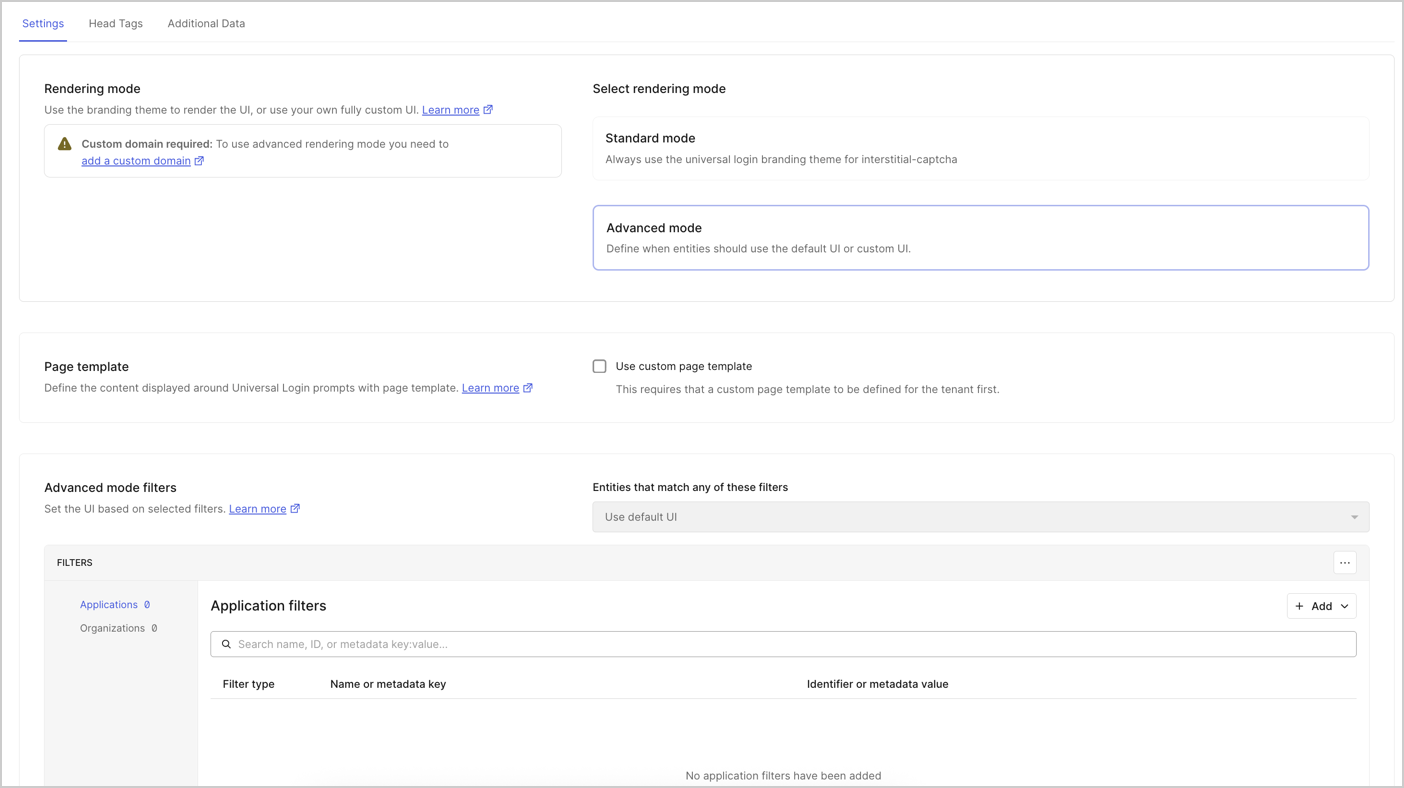 6. Select **Head Tags** to add your own HTML `Head Tags`.
7. (Optional) Select **Additional Data** to select which additional data to send to the browser.
B. Select **Save & Publish**
**Use the ACUL rendering configuration object**
The ACUL rendering configuration is a single JSON object that is used to enable ACUL and list all the available properties, per screen, which consist of specific assets, context data, and applicable conditional logic. The ACUL rendering configuration object can be used with IaC tools and the Auth0 Management API.
To learn more, review the [`/v2/prompts/patch-rendering`](https://auth0.com/docs/api/management/v2/prompts/patch-rendering) endpoint.
## The ACUL rendering configuration object
The ACUL rendering configuration is a single JSON object that is used to enable ACUL and list all the available properties, per screen, which consist of specific assets, context data, and applicable conditional logic. The ACUL rendering configuration object can be used with IaC tools and the Auth0 Management API.
To learn more, review the [`/v2/prompts/patch-rendering`](https://auth0.com/docs/api/management/v2/prompts/patch-rendering) endpoint.
## Infrastructure-as-Code (IaC)
Configure ACUL with IaC tools, including:
* The **Auth0 CLI's** [`auth0 acul`](https://auth0.github.io/auth0-cli/auth0_acul.html) command.
* The **Auth0 Terraform Provider's** [`auth0_prompt_screen_renderer`](https://registry.terraform.io/providers/auth0/auth0/latest/docs/resources/prompt_screen_renderer) resource.
* The **Auth0 Deploy CLI's** [`prompts`](https://github.com/auth0/auth0-deploy-cli/blob/master/docs/resource-specific-documentation.md#prompts) resource.
## Auth0 Management API
Use ACUL Management API endpoints to configure Universal Login screens individually or to update multiple screens with one API call. You must have [Management API access token](/docs/secure/tokens/access-tokens/management-api-access-tokens) in the request.
**Individual screen configuration**
* The [`GET /v2/prompts/{prompt}/screen/{screen}/rendering` endpoint](/docs/api/management/v2/prompts/get-rendering) allows you to retrieve the configuration for a single screen.
* The [`PATCH /v2/prompts/{prompt}/screen/{screen}/rendering` endpoint](/docs/api/management/v2/prompts/patch-rendering) allows you to configure ACUL on a single screen.
**Bulk screen configuration**
* The [`GET /v2/prompts/rendering` endpoint](/docs/api/management/v2/prompts/get-all-rendering) allows you to retrieve configurations for all the screens.
* The [`PATCH /v2/prompts/rendering` endpoint](/docs/api/management/v2/prompts/patch-bulk-rendering) allows you to update screens in bulk.
6. Select **Head Tags** to add your own HTML `Head Tags`.
7. (Optional) Select **Additional Data** to select which additional data to send to the browser.
B. Select **Save & Publish**
**Use the ACUL rendering configuration object**
The ACUL rendering configuration is a single JSON object that is used to enable ACUL and list all the available properties, per screen, which consist of specific assets, context data, and applicable conditional logic. The ACUL rendering configuration object can be used with IaC tools and the Auth0 Management API.
To learn more, review the [`/v2/prompts/patch-rendering`](https://auth0.com/docs/api/management/v2/prompts/patch-rendering) endpoint.
## The ACUL rendering configuration object
The ACUL rendering configuration is a single JSON object that is used to enable ACUL and list all the available properties, per screen, which consist of specific assets, context data, and applicable conditional logic. The ACUL rendering configuration object can be used with IaC tools and the Auth0 Management API.
To learn more, review the [`/v2/prompts/patch-rendering`](https://auth0.com/docs/api/management/v2/prompts/patch-rendering) endpoint.
## Infrastructure-as-Code (IaC)
Configure ACUL with IaC tools, including:
* The **Auth0 CLI's** [`auth0 acul`](https://auth0.github.io/auth0-cli/auth0_acul.html) command.
* The **Auth0 Terraform Provider's** [`auth0_prompt_screen_renderer`](https://registry.terraform.io/providers/auth0/auth0/latest/docs/resources/prompt_screen_renderer) resource.
* The **Auth0 Deploy CLI's** [`prompts`](https://github.com/auth0/auth0-deploy-cli/blob/master/docs/resource-specific-documentation.md#prompts) resource.
## Auth0 Management API
Use ACUL Management API endpoints to configure Universal Login screens individually or to update multiple screens with one API call. You must have [Management API access token](/docs/secure/tokens/access-tokens/management-api-access-tokens) in the request.
**Individual screen configuration**
* The [`GET /v2/prompts/{prompt}/screen/{screen}/rendering` endpoint](/docs/api/management/v2/prompts/get-rendering) allows you to retrieve the configuration for a single screen.
* The [`PATCH /v2/prompts/{prompt}/screen/{screen}/rendering` endpoint](/docs/api/management/v2/prompts/patch-rendering) allows you to configure ACUL on a single screen.
**Bulk screen configuration**
* The [`GET /v2/prompts/rendering` endpoint](/docs/api/management/v2/prompts/get-all-rendering) allows you to retrieve configurations for all the screens.
* The [`PATCH /v2/prompts/rendering` endpoint](/docs/api/management/v2/prompts/patch-bulk-rendering) allows you to update screens in bulk.