> ## Documentation Index
> Fetch the complete documentation index at: https://auth0.generaltranslation.app/llms.txt
> Use this file to discover all available pages before exploring further.

> Learn about Form nodes and available components.

# Nodes and components

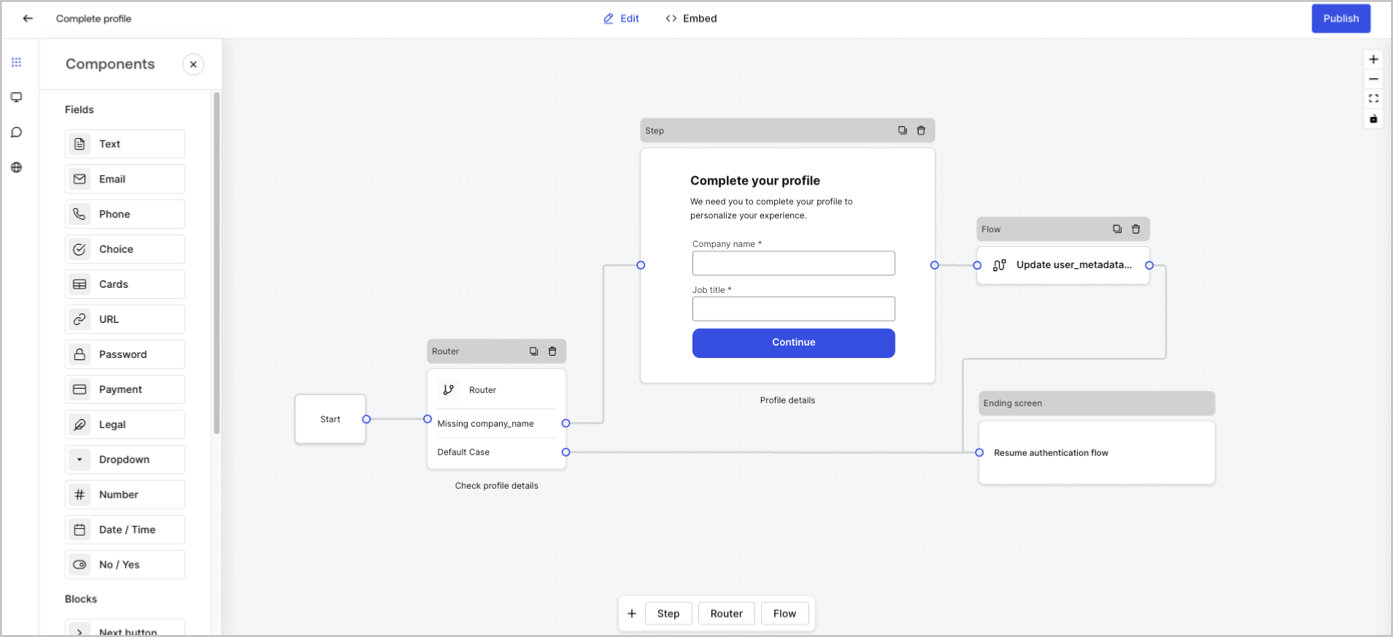
Forms lets you add nodes and components, such as fields, blocks, and widgets for your users to interact with the form. You can then reference the data input, from components, in your forms and flows.

## Form nodes

There are five types of form nodes: Start, Step, Flow, Router and Ending screen. These nodes have a very specific purpose for the structure of the form.

<Frame>
  <img src="https://mintcdn.com/generaltranslationinc/zzYYN5BbwWVQSB2A/docs/images/cdy7uua7fh8z/5V4GsHxxC2cjxx1aODCxPd/309850c72bbce224e7a8d3f5af34114c/form-editor-preview.png?fit=max&auto=format&n=zzYYN5BbwWVQSB2A&q=85&s=c38112bbb0841ee6fa2839051adb29c2" alt="Dashboard >  Forms > Form Editor" data-og-width="1393" width="1393" data-og-height="637" height="637" data-path="docs/images/cdy7uua7fh8z/5V4GsHxxC2cjxx1aODCxPd/309850c72bbce224e7a8d3f5af34114c/form-editor-preview.png" data-optimize="true" data-opv="3" srcset="https://mintcdn.com/generaltranslationinc/zzYYN5BbwWVQSB2A/docs/images/cdy7uua7fh8z/5V4GsHxxC2cjxx1aODCxPd/309850c72bbce224e7a8d3f5af34114c/form-editor-preview.png?w=280&fit=max&auto=format&n=zzYYN5BbwWVQSB2A&q=85&s=2bae9ac0a6548e49b2884cd5dacb6b01 280w, https://mintcdn.com/generaltranslationinc/zzYYN5BbwWVQSB2A/docs/images/cdy7uua7fh8z/5V4GsHxxC2cjxx1aODCxPd/309850c72bbce224e7a8d3f5af34114c/form-editor-preview.png?w=560&fit=max&auto=format&n=zzYYN5BbwWVQSB2A&q=85&s=af266d502c11a13ea82ea044cf5443b5 560w, https://mintcdn.com/generaltranslationinc/zzYYN5BbwWVQSB2A/docs/images/cdy7uua7fh8z/5V4GsHxxC2cjxx1aODCxPd/309850c72bbce224e7a8d3f5af34114c/form-editor-preview.png?w=840&fit=max&auto=format&n=zzYYN5BbwWVQSB2A&q=85&s=799a3b3a2d1c2f92eeeed31fad9ba256 840w, https://mintcdn.com/generaltranslationinc/zzYYN5BbwWVQSB2A/docs/images/cdy7uua7fh8z/5V4GsHxxC2cjxx1aODCxPd/309850c72bbce224e7a8d3f5af34114c/form-editor-preview.png?w=1100&fit=max&auto=format&n=zzYYN5BbwWVQSB2A&q=85&s=36e085391eb510e82ccd914da370f4ec 1100w, https://mintcdn.com/generaltranslationinc/zzYYN5BbwWVQSB2A/docs/images/cdy7uua7fh8z/5V4GsHxxC2cjxx1aODCxPd/309850c72bbce224e7a8d3f5af34114c/form-editor-preview.png?w=1650&fit=max&auto=format&n=zzYYN5BbwWVQSB2A&q=85&s=02d592e01d29aff0e3791a30eedc6bda 1650w, https://mintcdn.com/generaltranslationinc/zzYYN5BbwWVQSB2A/docs/images/cdy7uua7fh8z/5V4GsHxxC2cjxx1aODCxPd/309850c72bbce224e7a8d3f5af34114c/form-editor-preview.png?w=2500&fit=max&auto=format&n=zzYYN5BbwWVQSB2A&q=85&s=92912c1654725257b974453f0ee4fbbd 2500w" />
</Frame>

## Step node

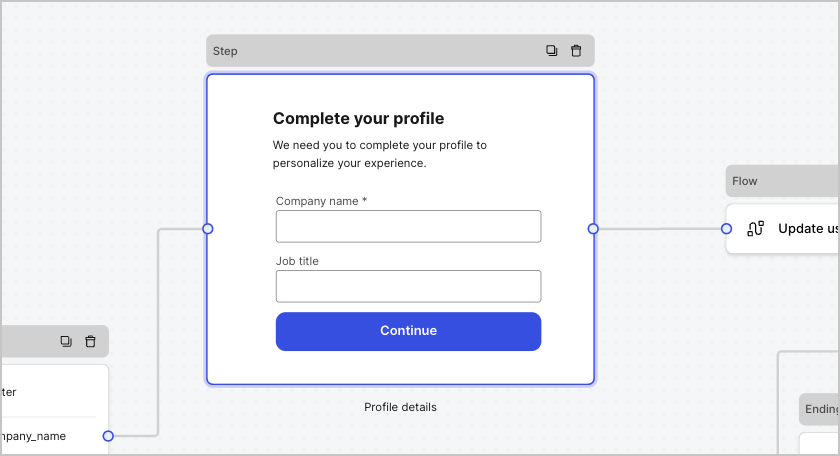
Step nodes are the visual representation of the form. They can contain any number of components, such as fields, blocks, and widgets where the user can fill in their data.
<Frame>
  <img src="https://mintcdn.com/generaltranslationinc/eTnlaUmP9KiNe1Wi/docs/images/cdy7uua7fh8z/2tbkcXkVon0BawCvYgnvIz/e2ce566320af18a6b08702f04f763126/form-step-node.png?fit=max&auto=format&n=eTnlaUmP9KiNe1Wi&q=85&s=e123168a8bb56756038a1461adfaece6" alt="Dashboard > Foms > Step node" data-og-width="840" width="840" data-og-height="456" height="456" data-path="docs/images/cdy7uua7fh8z/2tbkcXkVon0BawCvYgnvIz/e2ce566320af18a6b08702f04f763126/form-step-node.png" data-optimize="true" data-opv="3" srcset="https://mintcdn.com/generaltranslationinc/eTnlaUmP9KiNe1Wi/docs/images/cdy7uua7fh8z/2tbkcXkVon0BawCvYgnvIz/e2ce566320af18a6b08702f04f763126/form-step-node.png?w=280&fit=max&auto=format&n=eTnlaUmP9KiNe1Wi&q=85&s=8200e7581851aaa1bc98922bd4f32858 280w, https://mintcdn.com/generaltranslationinc/eTnlaUmP9KiNe1Wi/docs/images/cdy7uua7fh8z/2tbkcXkVon0BawCvYgnvIz/e2ce566320af18a6b08702f04f763126/form-step-node.png?w=560&fit=max&auto=format&n=eTnlaUmP9KiNe1Wi&q=85&s=d1af25467bb4235d7492f59e16bf73f0 560w, https://mintcdn.com/generaltranslationinc/eTnlaUmP9KiNe1Wi/docs/images/cdy7uua7fh8z/2tbkcXkVon0BawCvYgnvIz/e2ce566320af18a6b08702f04f763126/form-step-node.png?w=840&fit=max&auto=format&n=eTnlaUmP9KiNe1Wi&q=85&s=62024a7e2c1109d51b745661d394ca4d 840w, https://mintcdn.com/generaltranslationinc/eTnlaUmP9KiNe1Wi/docs/images/cdy7uua7fh8z/2tbkcXkVon0BawCvYgnvIz/e2ce566320af18a6b08702f04f763126/form-step-node.png?w=1100&fit=max&auto=format&n=eTnlaUmP9KiNe1Wi&q=85&s=6f1a69b6390000e5d3966112d13f6b44 1100w, https://mintcdn.com/generaltranslationinc/eTnlaUmP9KiNe1Wi/docs/images/cdy7uua7fh8z/2tbkcXkVon0BawCvYgnvIz/e2ce566320af18a6b08702f04f763126/form-step-node.png?w=1650&fit=max&auto=format&n=eTnlaUmP9KiNe1Wi&q=85&s=38f460d3cc23e2e934d0cf90f5197a6a 1650w, https://mintcdn.com/generaltranslationinc/eTnlaUmP9KiNe1Wi/docs/images/cdy7uua7fh8z/2tbkcXkVon0BawCvYgnvIz/e2ce566320af18a6b08702f04f763126/form-step-node.png?w=2500&fit=max&auto=format&n=eTnlaUmP9KiNe1Wi&q=85&s=9c64467cef0d1740b7ca4756d9d8d363 2500w" />
</Frame>

### Field components

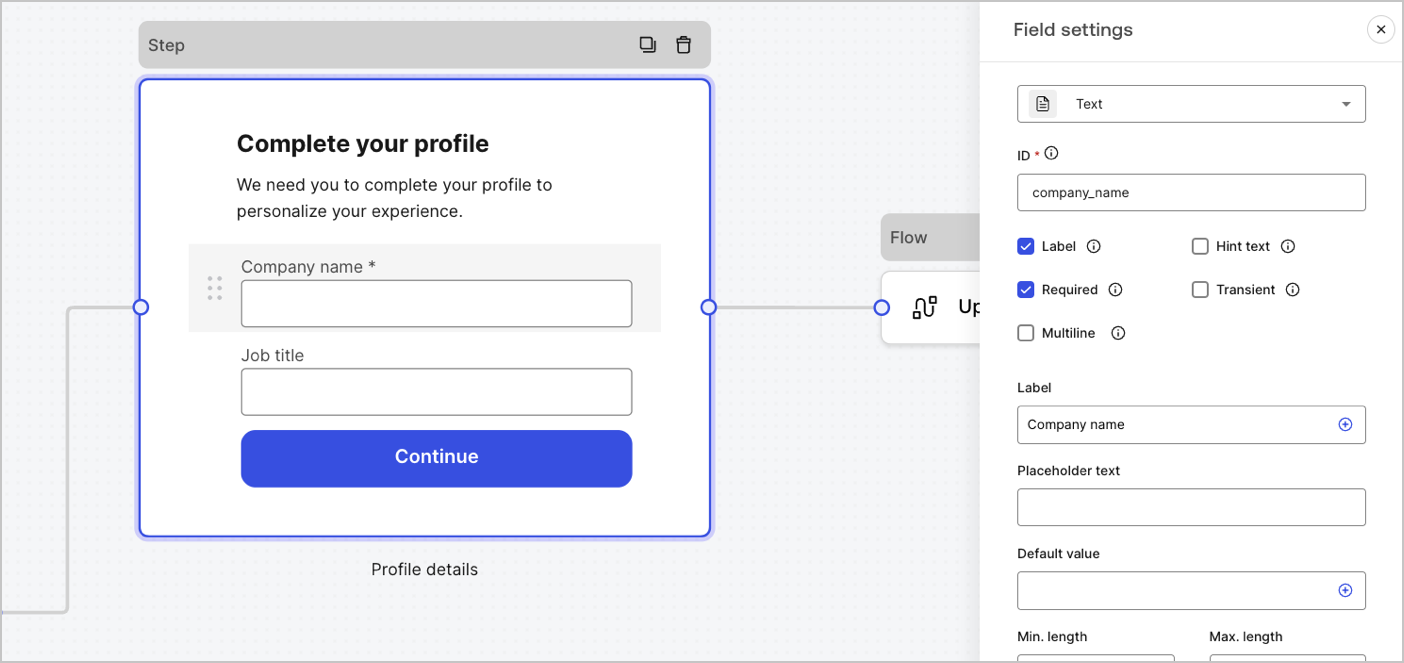
Fields are UI components where users input their information in Forms.
<Frame>
  <img src="https://mintcdn.com/generaltranslationinc/Q_4pAdRoZm2wi1v5/docs/images/cdy7uua7fh8z/6fuBdJcbDybzcVaiByUkoQ/2ad29c8dbbcc6ddf850f5efc004a75e0/forms-fields.png?fit=max&auto=format&n=Q_4pAdRoZm2wi1v5&q=85&s=3ad813523dff5b26b98a745f14f76f79" alt="Dashboard > Forms > Fields" data-og-width="1404" width="1404" data-og-height="663" height="663" data-path="docs/images/cdy7uua7fh8z/6fuBdJcbDybzcVaiByUkoQ/2ad29c8dbbcc6ddf850f5efc004a75e0/forms-fields.png" data-optimize="true" data-opv="3" srcset="https://mintcdn.com/generaltranslationinc/Q_4pAdRoZm2wi1v5/docs/images/cdy7uua7fh8z/6fuBdJcbDybzcVaiByUkoQ/2ad29c8dbbcc6ddf850f5efc004a75e0/forms-fields.png?w=280&fit=max&auto=format&n=Q_4pAdRoZm2wi1v5&q=85&s=20c25a21b686469f64f13f3457fb424a 280w, https://mintcdn.com/generaltranslationinc/Q_4pAdRoZm2wi1v5/docs/images/cdy7uua7fh8z/6fuBdJcbDybzcVaiByUkoQ/2ad29c8dbbcc6ddf850f5efc004a75e0/forms-fields.png?w=560&fit=max&auto=format&n=Q_4pAdRoZm2wi1v5&q=85&s=de4ae35dcfcaabe4ad6d2dd556e74149 560w, https://mintcdn.com/generaltranslationinc/Q_4pAdRoZm2wi1v5/docs/images/cdy7uua7fh8z/6fuBdJcbDybzcVaiByUkoQ/2ad29c8dbbcc6ddf850f5efc004a75e0/forms-fields.png?w=840&fit=max&auto=format&n=Q_4pAdRoZm2wi1v5&q=85&s=79b12264de28508190e8eca8efcb75df 840w, https://mintcdn.com/generaltranslationinc/Q_4pAdRoZm2wi1v5/docs/images/cdy7uua7fh8z/6fuBdJcbDybzcVaiByUkoQ/2ad29c8dbbcc6ddf850f5efc004a75e0/forms-fields.png?w=1100&fit=max&auto=format&n=Q_4pAdRoZm2wi1v5&q=85&s=50e74e8e4bd9db736c491f55eb4d1d3c 1100w, https://mintcdn.com/generaltranslationinc/Q_4pAdRoZm2wi1v5/docs/images/cdy7uua7fh8z/6fuBdJcbDybzcVaiByUkoQ/2ad29c8dbbcc6ddf850f5efc004a75e0/forms-fields.png?w=1650&fit=max&auto=format&n=Q_4pAdRoZm2wi1v5&q=85&s=cc05f697d56bacb77e80a84cbf0dd442 1650w, https://mintcdn.com/generaltranslationinc/Q_4pAdRoZm2wi1v5/docs/images/cdy7uua7fh8z/6fuBdJcbDybzcVaiByUkoQ/2ad29c8dbbcc6ddf850f5efc004a75e0/forms-fields.png?w=2500&fit=max&auto=format&n=Q_4pAdRoZm2wi1v5&q=85&s=8541f7092d5a7281414487e8a871945e 2500w" />
</Frame>

#### Field settings

Fields have a number of default settings that you can configure to meet your requirements.

The default field settings are:

<table class="table">
  <thead>
    <tr>
      <th><strong>Settings</strong></th>
      <th><strong>Description</strong></th>
    </tr>
  </thead>

  <tbody>
    <tr>
      <td>ID</td>
      <td>The unique id</td>
    </tr>

    <tr>
      <td>Label</td>
      <td>Display or hide a label</td>
    </tr>

    <tr>
      <td>Required</td>
      <td>Input value is required</td>
    </tr>

    <tr>
      <td>Hint text</td>
      <td>Display a hint text</td>
    </tr>

    <tr>
      <td>Placeholder text</td>
      <td>Text visible to the user</td>
    </tr>

    <tr>
      <td>Default value</td>
      <td>Default value visible to the user</td>
    </tr>

    <tr>
      <td>Transient</td>
      <td>Enable or disable data mask</td>
    </tr>
  </tbody>
</table>

#### Field validation rules

<table class="table">
  <thead>
    <tr>
      <th><strong>Settings</strong></th>
      <th><strong>Description</strong></th>
    </tr>
  </thead>

  <tbody>
    <tr>
      <td>Min. length / Max. length</td>
      <td>Require an input value length.</td>
    </tr>

    <tr>
      <td>Min. value / Max. value</td>
      <td>Require a number value length.</td>
    </tr>
  </tbody>
</table>

#### Available fields in Forms

The available fields with their specific settings and data output types are:

<AccordionGroup>
  <Accordion title="Text field">
    Standard input lets a user enter any string value.

    ##### Text field settings

    The text field setting is:

    <table class="table">
      <thead>
        <tr>
          <th><strong>Settings</strong></th>
          <th><strong>Description</strong></th>
        </tr>
      </thead>

      <tbody>
        <tr>
          <td>Multiline</td>
          <td>Enable multi-line input text.</td>
        </tr>
      </tbody>
    </table>

    ##### Text field output value

    The text field output value data type is a `string`.

    ```json lines theme={null}
    {
      "text_field_id": "Auth0"
    }
    ```
  </Accordion>

  <Accordion title="Email field">
    Standard input lets a user enter email string values.

    ##### Email field output value

    The email field output value data type is a `string`.

    ```json lines theme={null}
    {
      "email_field_id": "username@domain.com"
    }
    ```
  </Accordion>

  <Accordion title="Phone field">
    Standard input lets a user enter phone number values.

    ##### Phone field settings

    The phone field settings are:

    <table class="table">
      <thead>
        <tr>
          <th><strong>Settings</strong></th>
          <th><strong>Description</strong></th>
        </tr>
      </thead>

      <tbody>
        <tr>
          <td>Country picker</td>
          <td>Enable or disable Country picker. By default, it displays the user’s IP location.</td>
        </tr>

        <tr>
          <td>Filter placeholder text</td>
          <td>Text visible to the user in the country search window.</td>
        </tr>
      </tbody>
    </table>

    ##### Phone field output value

    The phone field output value data type is either a `string` or, if Country picker is enabled, an `object` .

    The phone field output data type value as a `string`:

    ```json lines theme={null}
    {
      "phone_field_id": "8005550175"
    }
    ```

    The phone field output data type value as an `object` :

    ```json lines theme={null}
    {
      "phone_field_id": {
        "national_number": "8005550175",
        "national_format": "(800) 555-0175",
        "international_number": "+18005550175",
        "international_format": "+1 800-555-0175",
        "country_code_iso": "US",
        "country_code_number": "1"
      }
    }
    ```
  </Accordion>

  <Accordion title="Choice field">
    Standard input that lets a user select single or multiple choice values.

    ##### Choice field settings

    The Choice field settings are:

    <table class="table">
      <thead>
        <tr>
          <th><strong>Settings</strong></th>
          <th><strong>Description</strong></th>
        </tr>
      </thead>

      <tbody>
        <tr>
          <td>Multiple choice</td>
          <td>Enable several choice options.</td>
        </tr>

        <tr>
          <td>Other option</td>
          <td>Let users enter their own option.</td>
        </tr>

        <tr>
          <td>Advanced > Internal values</td>
          <td>Assign an internal value to each choice option.</td>
        </tr>

        <tr>
          <td>Advanced > Bulk edit</td>
          <td>Bulk edit label and internal choice option values.</td>
        </tr>
      </tbody>
    </table>

    ##### Choice field output value

    The choice field output value data type is either a `string` or, if multiple choice is enabled, as an `array of strings` .

    The choice field output data type  value as a `string`:

    ```json lines theme={null}
    {
      "choice_field_id": "Option A"
    }
    ```

    The choice field output data type value as an  `array of strings`:

    ```json lines theme={null}
    {
      "choice_field_id": ["Option A", "Option B"]
    }
    ```
  </Accordion>

  <Accordion title="Cards field">
    Standard input that lets a user select single or multiple choice image values.

    ##### Cards field settings

    The cards field settings are:

    <table class="table">
      <thead>
        <tr>
          <th><strong>Settings</strong></th>
          <th><strong>Description</strong></th>
        </tr>
      </thead>

      <tbody>
        <tr>
          <td>Multiple choice</td>
          <td>Enable several choice options.</td>
        </tr>

        <tr>
          <td>Hide labels</td>
          <td>Hide card labels.</td>
        </tr>

        <tr>
          <td>Advanced > Internal values</td>
          <td>Assign an internal value for each option.</td>
        </tr>
      </tbody>
    </table>

    ##### Cards field output value

    The cards field output value data type is either a `string` or, if multiple choice is enabled, as an `array of strings`.

    The cards field output data type value as a `string`:

    ```json lines theme={null}
    {
      "card_field_id": "Option A"
    }
    ```

    The cards field output data type value as an `array of strings`:

    ```json lines theme={null}
    {
      "card_field_id": ["Option A", "Option B"]
    }
    ```
  </Accordion>

  <Accordion title="URL field">
    Standard input lets a user enter a URL value.

    ##### URL field output value

    The URL field output value data type is a string:

    ```json lines theme={null}
    {
      "url_field_id": "https://auth0.com"
    }
    ```
  </Accordion>

  <Accordion title="Password field">
    Standard input that lets a user enter a password or a secret value.

    ##### Password field settings

    The password field settings are:

    <table class="table">
      <thead>
        <tr>
          <th><strong>Settings</strong></th>
          <th><strong>Description</strong></th>
        </tr>
      </thead>

      <tbody>
        <tr>
          <td>Require complex password</td>
          <td>Passwords must contain an uppercase, a lowercase, a symbol and a number.</td>
        </tr>

        <tr>
          <td>Enforce NIST guidelines</td>
          <td>The password cannot be less than 8 characters, passwords obtained from previous breach corpuses, dictionary words, repetitive or sequential characters, content-specific words.</td>
        </tr>

        <tr>
          <td>Add strength meter</td>
          <td>A graphical meter with a red, yellow and green scale is displayed under the password field to show the strength of the password input.</td>
        </tr>

        <tr>
          <td>Hash</td>
          <td>Select an algorithm to hash the input value directly in the browser.</td>
        </tr>
      </tbody>
    </table>

    ##### Password field output value

    The password field output value data type is a masked `string`:

    ```json lines theme={null}
    {
      "password_field_id": "███"
    }
    ```
  </Accordion>

  <Accordion title="Payment field">
    Standard input that lets a user enter payment information using a payment provider. Payments are processed before the Ending node.

    ##### Payment field settings

    The payment field settings are:

    <table class="table">
      <thead>
        <tr>
          <th><strong>Settings</strong></th>
          <th><strong>Description</strong></th>
        </tr>
      </thead>

      <tbody>
        <tr>
          <td>Payment type</td>
          <td>Select either a one-off (Charge) or recurring (Subscription) payments.</td>
        </tr>

        <tr>
          <td>Amount</td>
          <td>Specify the amount for a one-off (Charge) payment.</td>
        </tr>

        <tr>
          <td>Currency</td>
          <td>Specify the currency for a one- off ( Charge) payment.</td>
        </tr>

        <tr>
          <td>Subscription action</td>
          <td>Select either to create or update an existing subscription.</td>
        </tr>

        <tr>
          <td>Customer action</td>
          <td>Select either to create or update an existing customer.</td>
        </tr>

        <tr>
          <td>Display options</td>
          <td>Display and edit Card number, Expiration date, and Security code labels and Trustmarks.</td>
        </tr>
      </tbody>
    </table>

    ##### Payment field output value

    The payment field output value data type is either a string or an object  for after submission flows.

    The payment field output value data type as a `string`:

    ```json lines theme={null}
    {
      "payment_field_id": "pm_1P19e..."
    }
    ```

    The payment field output value data type for subscriptions as an `object` :

    ```json lines theme={null}
    {
      "payment_field_id": {
        "payment_method_id": "pm_1P19e...",
        "customer_id": "cus_PqrM...",
        "price_ids": [
          "price_1ONHR..."
        ],
        "subscription_id": "sub_1P1A...",
        "payment_intent_id": "pi_3P19e5..."
      }
    }
    ```

    The payment field output value data type for charge as an `object` :

    ```json lines theme={null}
    {
      "payment_field_id": {
        "payment_method_id": "pm_1P19e...",
        "customer_id": "cus_PqrM...",
        "amount": 100,
        "payment_intent_id": "pi_3P19e5..."
      }
    }
    ```
  </Accordion>

  <Accordion title="Legal field">
    Standard input that adds legal text and a check input.

    ##### Legal field output value

    The legal field output value data type is a `boolean`.

    ```json lines theme={null}
    {
      "legal_field_id": true
    }
    ```
  </Accordion>

  <Accordion title="Dropdown field">
    Standard input that lets a user select single or multiple dropdown choice values.

    ##### Dropdown field settings

    The dropdown field settings are:

    <table class="table">
      <thead>
        <tr>
          <th><strong>Settings</strong></th>
          <th><strong>Description</strong></th>
        </tr>
      </thead>

      <tbody>
        <tr>
          <td>Multiple selector</td>
          <td>Enable several choice options.</td>
        </tr>

        <tr>
          <td>Advanced > Internal values</td>
          <td>Assign an internal value for each option.</td>
        </tr>

        <tr>
          <td>Advanced > Bulk edit</td>
          <td>Bulk edit label and internal values.</td>
        </tr>
      </tbody>
    </table>

    ##### Dropdown field output value

    The dropdown field output value data type is either a `string` or, if multiple choice is enabled, as an `array of strings` .

    The dropdown field output data type  value as a `string`:

    ```json lines theme={null}
    {
      "dropdown_field_id": "Option A"
    }
    ```

    The dropdown field output data type value as an `array of strings`:

    ```json lines theme={null}
    {
      "dropdown_field_id": ["Option A", "Option B"]
    }
    ```
  </Accordion>

  <Accordion title="Number field">
    Standard input that lets a user enter number values.

    ##### Number field output value

    The number field output value data type is a `number`.

    ```json lines theme={null}
    {
      "number_field_id": 123
    }
    ```
  </Accordion>

  <Accordion title="Date / Time field">
    Standard input that lets a user enter either a date or time values.

    ##### Date / Time field settings

    The date/time field settings include:

    <table class="table">
      <thead>
        <tr>
          <th><strong>Key</strong></th>
          <th><strong>Description</strong></th>
        </tr>
      </thead>

      <tbody>
        <tr>
          <td>Format</td>
          <td>Select either Date or Time format.</td>
        </tr>
      </tbody>
    </table>

    ##### Date / Time field output value

    The date/time field output data type value for date is a `string`:

    ```json lines theme={null}
    {
      "date_time_field_id": "2023-04-11"
    }
    ```

    The date/time field output data type value for time is a `string`:

    ```json lines theme={null}
    {
      "date_time_field_id": "23:15"
    }
    ```
  </Accordion>

  <Accordion title="Boolean field">
    Standard input that lets a user enter true or false values.

    ##### Boolean field output value

    The boolean field output value data type is a boolean.

    ```json lines theme={null}
    {
      "boolean_field_id": true
    }
    ```
  </Accordion>

  <Accordion title="Custom field">
    Standard field that you can customize to create your own field.

    ##### Custom field settings

    The custom field setting are:

    <table class="table">
      <thead>
        <tr>
          <th><strong>Settings</strong></th>
          <th><strong>Description</strong></th>
        </tr>
      </thead>

      <tbody>
        <tr>
          <td>Params</td>
          <td>Add key-value pairs to reference in the custom field source code.</td>
        </tr>

        <tr>
          <td>Source code</td>
          <td>Add your Javascript code to the custom field.</td>
        </tr>

        <tr>
          <td>JSON Schema</td>
          <td>By default, the custom field accepts any value format. However, you can use JSON Schema to validate values.</td>
        </tr>
      </tbody>
    </table>

    To learn more, read [Custom Field Components for Forms](/docs/customize/forms/custom-field-components).
  </Accordion>
</AccordionGroup>

### Blocks components

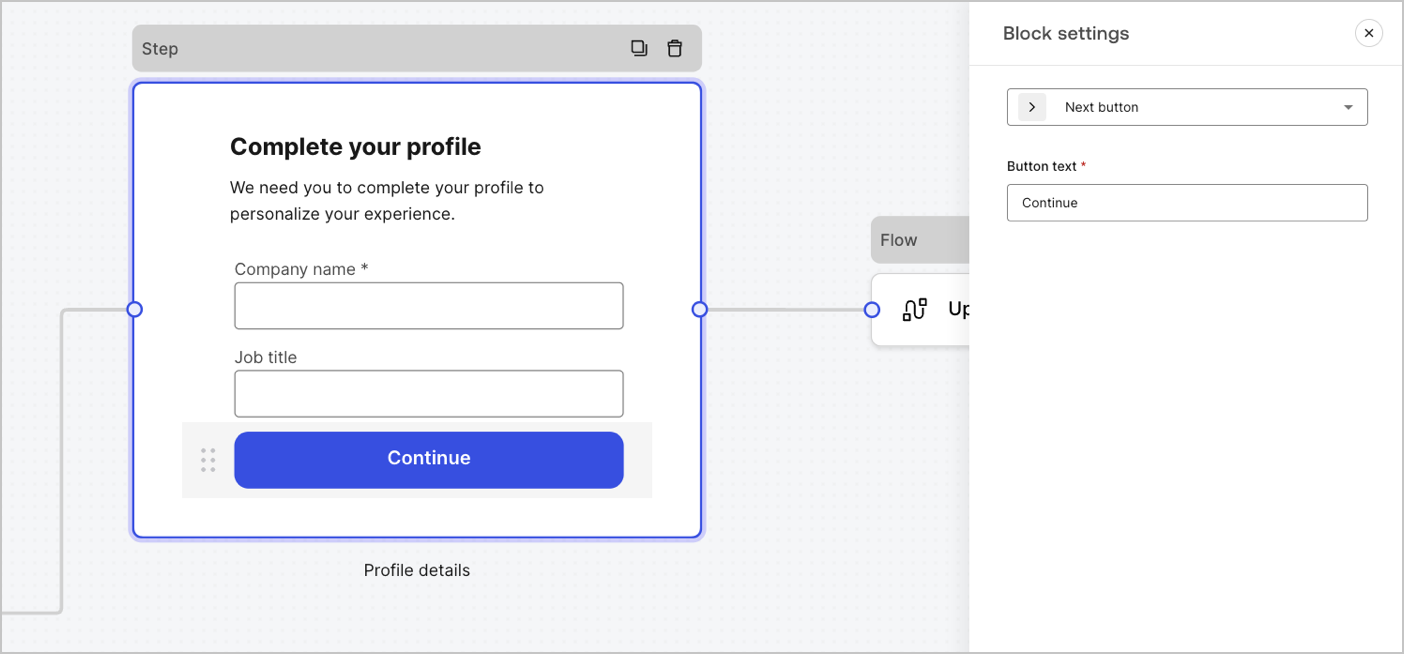
Blocks are UI components that add functionality to your forms but do not gather user information.

<Frame>
  <img src="https://mintcdn.com/generaltranslationinc/KrAMlK2KdiUaZm4a/docs/images/cdy7uua7fh8z/7IijftJnuwcevL4bdHiaKw/f0376ca75303bb58d0df87e6af75e347/forms-block.png?fit=max&auto=format&n=KrAMlK2KdiUaZm4a&q=85&s=8cc1944012c91c8d16a677e2966430cc" alt="Dashboard > Forms > Components > Blocks" data-og-width="1404" width="1404" data-og-height="654" height="654" data-path="docs/images/cdy7uua7fh8z/7IijftJnuwcevL4bdHiaKw/f0376ca75303bb58d0df87e6af75e347/forms-block.png" data-optimize="true" data-opv="3" srcset="https://mintcdn.com/generaltranslationinc/KrAMlK2KdiUaZm4a/docs/images/cdy7uua7fh8z/7IijftJnuwcevL4bdHiaKw/f0376ca75303bb58d0df87e6af75e347/forms-block.png?w=280&fit=max&auto=format&n=KrAMlK2KdiUaZm4a&q=85&s=222c3b2a8218c643dc7ed2f72c91dd7d 280w, https://mintcdn.com/generaltranslationinc/KrAMlK2KdiUaZm4a/docs/images/cdy7uua7fh8z/7IijftJnuwcevL4bdHiaKw/f0376ca75303bb58d0df87e6af75e347/forms-block.png?w=560&fit=max&auto=format&n=KrAMlK2KdiUaZm4a&q=85&s=beaf8d988d6443623f7c33be5b49624e 560w, https://mintcdn.com/generaltranslationinc/KrAMlK2KdiUaZm4a/docs/images/cdy7uua7fh8z/7IijftJnuwcevL4bdHiaKw/f0376ca75303bb58d0df87e6af75e347/forms-block.png?w=840&fit=max&auto=format&n=KrAMlK2KdiUaZm4a&q=85&s=b7093ad72b7c635dc2c08e34ea0e4fd5 840w, https://mintcdn.com/generaltranslationinc/KrAMlK2KdiUaZm4a/docs/images/cdy7uua7fh8z/7IijftJnuwcevL4bdHiaKw/f0376ca75303bb58d0df87e6af75e347/forms-block.png?w=1100&fit=max&auto=format&n=KrAMlK2KdiUaZm4a&q=85&s=b19b637805aa6c10d1acc4cbc053eee3 1100w, https://mintcdn.com/generaltranslationinc/KrAMlK2KdiUaZm4a/docs/images/cdy7uua7fh8z/7IijftJnuwcevL4bdHiaKw/f0376ca75303bb58d0df87e6af75e347/forms-block.png?w=1650&fit=max&auto=format&n=KrAMlK2KdiUaZm4a&q=85&s=93e3fe79b1169317f9831293ed087245 1650w, https://mintcdn.com/generaltranslationinc/KrAMlK2KdiUaZm4a/docs/images/cdy7uua7fh8z/7IijftJnuwcevL4bdHiaKw/f0376ca75303bb58d0df87e6af75e347/forms-block.png?w=2500&fit=max&auto=format&n=KrAMlK2KdiUaZm4a&q=85&s=a041aba4b2902586ebc668634b1f3d63 2500w" />
</Frame>

#### Available blocks in Forms

The available blocks are:

<AccordionGroup>
  <Accordion title="Next button block">
    A button that lets users continue to the next form node.

    <Callout icon="file-lines" color="#0EA5E9" iconType="regular">
      * Before continuing, field validation rules are applied and validated on the client-side and server-side. If field validation rules fail, an error message is displayed for the user to verify.
      * If the next node is a flow node, a spinner loader is displayed until the flow completes. If the flow fails or returns a custom error message, an error message is displayed.
    </Callout>
  </Accordion>

  <Accordion title="Previous button block">
    A button that lets users go to the previous step node.

    <Callout icon="file-lines" color="#0EA5E9" iconType="regular">
      If a user selects the previous button, field validation rules are re-run again even if no change to input data is done before continuing.
    </Callout>
  </Accordion>

  <Accordion title="Jump button block">
    A button that lets users skip the current step and directly jumps to the destination node.

    <Callout icon="file-lines" color="#0EA5E9" iconType="regular">
      When skipping the current step, we won't validate and neither collect any filled out information of the current step.
    </Callout>
  </Accordion>

  <Accordion title="Resend button block">
    A component that lets users re-run a flow to generate and send a new OTP code

    <Callout icon="file-lines" color="#0EA5E9" iconType="regular">
      if a user selects the resend button, the associated flow will generate and send a new OTP code.
    </Callout>

    <table class="table">
      <thead>
        <tr>
          <th><strong>Settings</strong></th>
          <th><strong>Description</strong></th>
        </tr>
      </thead>

      <tbody>
        <tr>
          <td>Text alignment</td>
          <td>Select text alignment, left, center, or right</td>
        </tr>

        <tr>
          <td>Text</td>
          <td>Default text displayed when users select the resend button</td>
        </tr>

        <tr>
          <td>Button text</td>
          <td>Button text</td>
        </tr>

        <tr>
          <td>Waiting text</td>
          <td>Text displayed when users have selected the resend button. Replaces <code>Text</code> and the <code>Button text</code> settings.  Use the `“{{remaining_seconds}}”` variable to dynamically display the remaining number of seconds until the send button is enabled again.  For example: “Resend in `{{remaining_seconds}}` seconds”.</td>
        </tr>

        <tr>
          <td>Flow</td>
          <td>Flow executed after the user selects the resend button.</td>
        </tr>

        <tr>
          <td>Max attempts</td>
          <td>The maximum number of attempts the user can select the resend button</td>
        </tr>

        <tr>
          <td>Waiting time</td>
          <td>The waiting time between attempts in seconds.</td>
        </tr>
      </tbody>
    </table>
  </Accordion>

  <Accordion title="Rich text block">
    A rich text block to personalize the step node with additional information.
  </Accordion>

  <Accordion title="Divider block">
    A line to divide different sections of the step node. It can contain a small text.
  </Accordion>

  <Accordion title="HTML block">
    A HTML block to create your custom UI.
  </Accordion>

  <Accordion title="Image block">
    An image block to personalize the step adding images.
  </Accordion>
</AccordionGroup>

### Widgets components

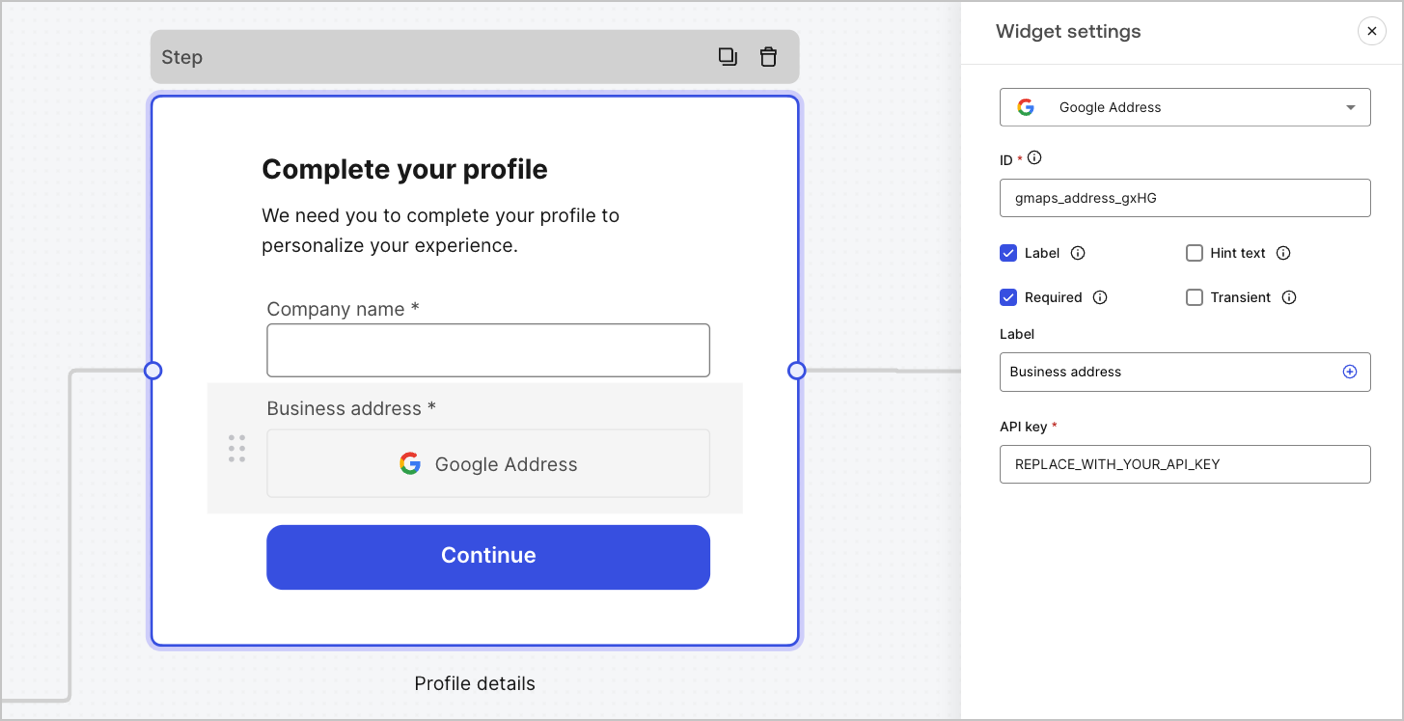
Widgets are pre-built components, with third-party integrations, that add client-side and server-side logic to your forms.

<Frame>
  <img src="https://mintcdn.com/generaltranslationinc/RMdEvk9xid_26wCJ/docs/images/cdy7uua7fh8z/3J0IuWLP7utOPKSHc82IE9/a523afe0c240c63f714ef5fb102f8dab/forms-widget.png?fit=max&auto=format&n=RMdEvk9xid_26wCJ&q=85&s=32d0010746970bb65fcea6b027a18834" alt="Dashboard > Forms > Components > Widget" data-og-width="1404" width="1404" data-og-height="721" height="721" data-path="docs/images/cdy7uua7fh8z/3J0IuWLP7utOPKSHc82IE9/a523afe0c240c63f714ef5fb102f8dab/forms-widget.png" data-optimize="true" data-opv="3" srcset="https://mintcdn.com/generaltranslationinc/RMdEvk9xid_26wCJ/docs/images/cdy7uua7fh8z/3J0IuWLP7utOPKSHc82IE9/a523afe0c240c63f714ef5fb102f8dab/forms-widget.png?w=280&fit=max&auto=format&n=RMdEvk9xid_26wCJ&q=85&s=974523f467e321433bcb79d171abe5a1 280w, https://mintcdn.com/generaltranslationinc/RMdEvk9xid_26wCJ/docs/images/cdy7uua7fh8z/3J0IuWLP7utOPKSHc82IE9/a523afe0c240c63f714ef5fb102f8dab/forms-widget.png?w=560&fit=max&auto=format&n=RMdEvk9xid_26wCJ&q=85&s=c3af636639ae0c2f972ed11159c87185 560w, https://mintcdn.com/generaltranslationinc/RMdEvk9xid_26wCJ/docs/images/cdy7uua7fh8z/3J0IuWLP7utOPKSHc82IE9/a523afe0c240c63f714ef5fb102f8dab/forms-widget.png?w=840&fit=max&auto=format&n=RMdEvk9xid_26wCJ&q=85&s=f4ff43617c6d6f8ecac3007d803397b0 840w, https://mintcdn.com/generaltranslationinc/RMdEvk9xid_26wCJ/docs/images/cdy7uua7fh8z/3J0IuWLP7utOPKSHc82IE9/a523afe0c240c63f714ef5fb102f8dab/forms-widget.png?w=1100&fit=max&auto=format&n=RMdEvk9xid_26wCJ&q=85&s=7f32d7ee02ca9540a45f628417430a6c 1100w, https://mintcdn.com/generaltranslationinc/RMdEvk9xid_26wCJ/docs/images/cdy7uua7fh8z/3J0IuWLP7utOPKSHc82IE9/a523afe0c240c63f714ef5fb102f8dab/forms-widget.png?w=1650&fit=max&auto=format&n=RMdEvk9xid_26wCJ&q=85&s=3240c3caa6f5c6ecdd6c735acf212035 1650w, https://mintcdn.com/generaltranslationinc/RMdEvk9xid_26wCJ/docs/images/cdy7uua7fh8z/3J0IuWLP7utOPKSHc82IE9/a523afe0c240c63f714ef5fb102f8dab/forms-widget.png?w=2500&fit=max&auto=format&n=RMdEvk9xid_26wCJ&q=85&s=ea6b9d1795b37bae9daf267371c0a33a 2500w" />
</Frame>

#### Available widgets in Forms

The available widget is:

<AccordionGroup>
  <Accordion title="Google Address Widget">
    A widget that lets a user enter and validate their address.

    ##### Google Address widget settings

    The Google Address widget settings include:

    <table class="table">
      <thead>
        <tr>
          <th><strong>Settings</strong></th>
          <th><strong>Description</strong></th>
        </tr>
      </thead>

      <tbody>
        <tr>
          <td>API key</td>
          <td>Requires a Google Maps API key to authenticate requests.</td>
        </tr>
      </tbody>
    </table>

    ##### Google Address widget output value

    The Google Address widget output value data type is an `object`.

    ```json lines theme={null}
    {
      "google_address_widget_id": {
        "type": "Feature",
        "geometry": {
          "type": "Point",
          "coordinates": [
            -73.9654415,
            40.8054491
          ]
        },
        "properties": {
          "geocoding": {
            "type": "house",
            "housenumber": "2880",
            "street": "Broadway",
            "city": "New York",
            "county": "New York County",
            "state": "New York",
            "country": "United States",
            "postcode": "10025"
          }
        }
      }
    }
    ```
  </Accordion>

  <Accordion title="Google reCAPTCHA">
    A widget that helps protect your website from spam and abuse by verifying that a user is a human and not a bot.

    The widget supports:

    * Score-based (v3)
    * Challenge (v2)

      * Invisible reCAPTCHA badge

    Differences between `v2` and `v3`:

    * `v2` requires user interaction with visible challenges, such as clicking a checkbox or solving puzzles.
    * `v3` runs in the background and provides a score based on user behavior, without requiring user interaction. When using this version, make sure to implement additional business logic to handle the score and determine if further action is needed.

    ##### Google reCAPTCHA widget settings

    The Google reCAPTCHA widget settings include:

    <table class="table">
      <thead>
        <tr>
          <th><strong>Settings</strong></th>
          <th><strong>Description</strong></th>
        </tr>
      </thead>

      <tbody>
        <tr>
          <td>Site key</td>
          <td>The public site key used to initialize the reCAPTCHA on your website. You can create it in <a href="https://www.google.com/recaptcha/admin/create">Google reCAPTCHA console</a> or your Google Cloud Platform project.</td>
        </tr>

        <tr>
          <td>Secret key</td>
          <td>The secret key used to communicate securely with the reCAPTCHA service server-side. You can create it in <a href="https://www.google.com/recaptcha/admin/create">Google reCAPTCHA console</a> or your Google Cloud Platform project.</td>
        </tr>
      </tbody>
    </table>

    ##### Google reCAPTCHA output value

    The Google reCAPTCHA widget output value data type is an `object`.

    Example of `v2` response:

    ```json lines theme={null}
    {
      "recaptcha_widget_id": {
        "success": true,
        "challenge_ts": "2025-03-26T11:22:18Z",
        "hostname": "auth.example.com"
      }
    }
    ```

    Example of `v3` response:

    ```json lines theme={null}
    {
      "recaptcha_widget_id": {
        "success": true,
        "challenge_ts": "2025-03-26T11:22:18Z",
        "hostname": "auth.example.com",
        "score": 0.9
      }
    }
    ```
  </Accordion>

  <Accordion title="Verifiable Credentials">
    A widget that lets a user verify their identity using verifiable credentials stored in their digital wallet.

    ##### Verifiable Credentials widget settings

    The Verifiable Credentials widget settings include:

    <table class="table">
      <thead>
        <tr>
          <th><strong>Settings</strong></th>
          <th><strong>Description</strong></th>
        </tr>
      </thead>

      <tbody>
        <tr>
          <td>URL</td>
          <td>The URL value used to generate the QR code. This value is returned in the <code>engagement</code> property of the verification request.</td>
        </tr>

        <tr>
          <td>Link text</td>
          <td>Alternative text that will be displayed for users who cannot scan the QR code and prefer to open the link directly on their device.</td>
        </tr>

        <tr>
          <td>Size</td>
          <td>The size of the QR code.</td>
        </tr>

        <tr>
          <td>Public token</td>
          <td>The access token required to consume the polling endpoint. Please ensure the token is generated with only the <code>read:verification\_request</code> scope to avoid exposing access to other resources.</td>
        </tr>

        <tr>
          <td>Verification ID</td>
          <td>The verification ID generated when you start the verification request.</td>
        </tr>

        <tr>
          <td>Maximum waiting time</td>
          <td>The maximum amount of time to wait for the verification process to complete. Once the set time is reached, polling will stop and an error will be thrown, regardless of the verification status.</td>
        </tr>
      </tbody>
    </table>

    ##### Verifiable Credentials output value

    The Verifiable Credentials widget output value data type is an `object`.

    ```json lines theme={null}
    {
      "verifiable_credentials_widget_id": {
        "state": "honored",
        "reason": "...", // The reason field contains additional information (if available) regarding the state of the verification request. 
        "presentation": {} // The presentation contains the claims provided by the wallet in response to the presentation definition.
      }
    }
    ```
  </Accordion>
</AccordionGroup>

## Router node

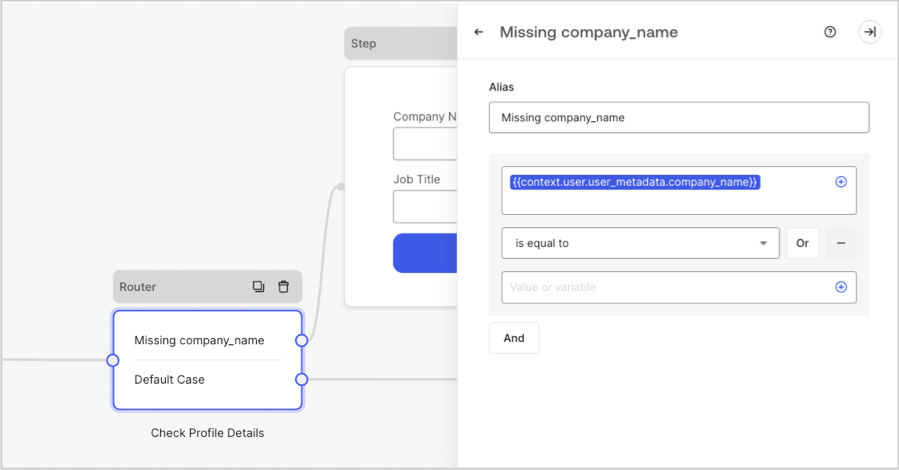
Router nodes let you add rules to create conditional logic jumps between nodes.

By default, a router node has a single pass-through rule named **Default Case** that connects to other nodes. You can add additional rules based on a set of conditions that a variable must meet to then connect to other nodes. To learn more, read [Router.](/docs/customize/forms/routers)

<Frame>
  <img src="https://mintcdn.com/generaltranslationinc/bJAwjuRiJwaYWdNy/docs/images/cdy7uua7fh8z/2IKI9sU9UPCVkMkHQ3G8lX/07df765647a69a4cf1ab8c5c7aae3c22/2025-07-15_10-31-08.png?fit=max&auto=format&n=bJAwjuRiJwaYWdNy&q=85&s=36cade17e64bfedc3178d016a1008be1" alt="Dashboard > Forms > Routers " data-og-width="899" width="899" data-og-height="470" height="470" data-path="docs/images/cdy7uua7fh8z/2IKI9sU9UPCVkMkHQ3G8lX/07df765647a69a4cf1ab8c5c7aae3c22/2025-07-15_10-31-08.png" data-optimize="true" data-opv="3" srcset="https://mintcdn.com/generaltranslationinc/bJAwjuRiJwaYWdNy/docs/images/cdy7uua7fh8z/2IKI9sU9UPCVkMkHQ3G8lX/07df765647a69a4cf1ab8c5c7aae3c22/2025-07-15_10-31-08.png?w=280&fit=max&auto=format&n=bJAwjuRiJwaYWdNy&q=85&s=bb759fb6166eb34d15d6f3b39f2e9890 280w, https://mintcdn.com/generaltranslationinc/bJAwjuRiJwaYWdNy/docs/images/cdy7uua7fh8z/2IKI9sU9UPCVkMkHQ3G8lX/07df765647a69a4cf1ab8c5c7aae3c22/2025-07-15_10-31-08.png?w=560&fit=max&auto=format&n=bJAwjuRiJwaYWdNy&q=85&s=2d1b429a8ddcd278ac6e3a726b218b05 560w, https://mintcdn.com/generaltranslationinc/bJAwjuRiJwaYWdNy/docs/images/cdy7uua7fh8z/2IKI9sU9UPCVkMkHQ3G8lX/07df765647a69a4cf1ab8c5c7aae3c22/2025-07-15_10-31-08.png?w=840&fit=max&auto=format&n=bJAwjuRiJwaYWdNy&q=85&s=a94f28b932ce22b75f4e7b2b8020587e 840w, https://mintcdn.com/generaltranslationinc/bJAwjuRiJwaYWdNy/docs/images/cdy7uua7fh8z/2IKI9sU9UPCVkMkHQ3G8lX/07df765647a69a4cf1ab8c5c7aae3c22/2025-07-15_10-31-08.png?w=1100&fit=max&auto=format&n=bJAwjuRiJwaYWdNy&q=85&s=1b94ab4c6b4ce6aad7be577f9ada33f7 1100w, https://mintcdn.com/generaltranslationinc/bJAwjuRiJwaYWdNy/docs/images/cdy7uua7fh8z/2IKI9sU9UPCVkMkHQ3G8lX/07df765647a69a4cf1ab8c5c7aae3c22/2025-07-15_10-31-08.png?w=1650&fit=max&auto=format&n=bJAwjuRiJwaYWdNy&q=85&s=ebb3abfc48cca04da6db00ed946b4148 1650w, https://mintcdn.com/generaltranslationinc/bJAwjuRiJwaYWdNy/docs/images/cdy7uua7fh8z/2IKI9sU9UPCVkMkHQ3G8lX/07df765647a69a4cf1ab8c5c7aae3c22/2025-07-15_10-31-08.png?w=2500&fit=max&auto=format&n=bJAwjuRiJwaYWdNy&q=85&s=67006ab7dab3f0421cb4cef93039aa85 2500w" />
</Frame>

## Flow node

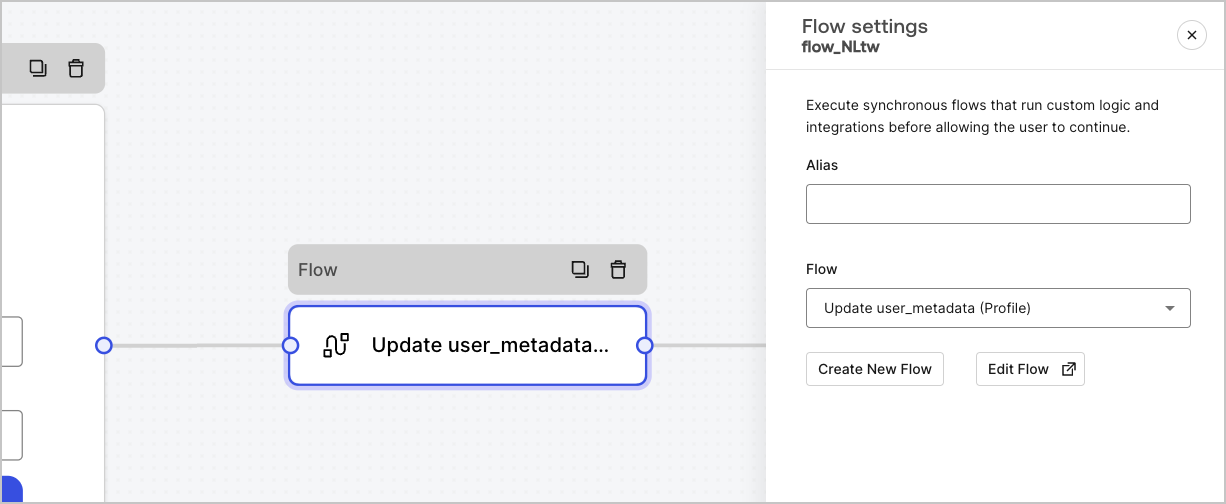
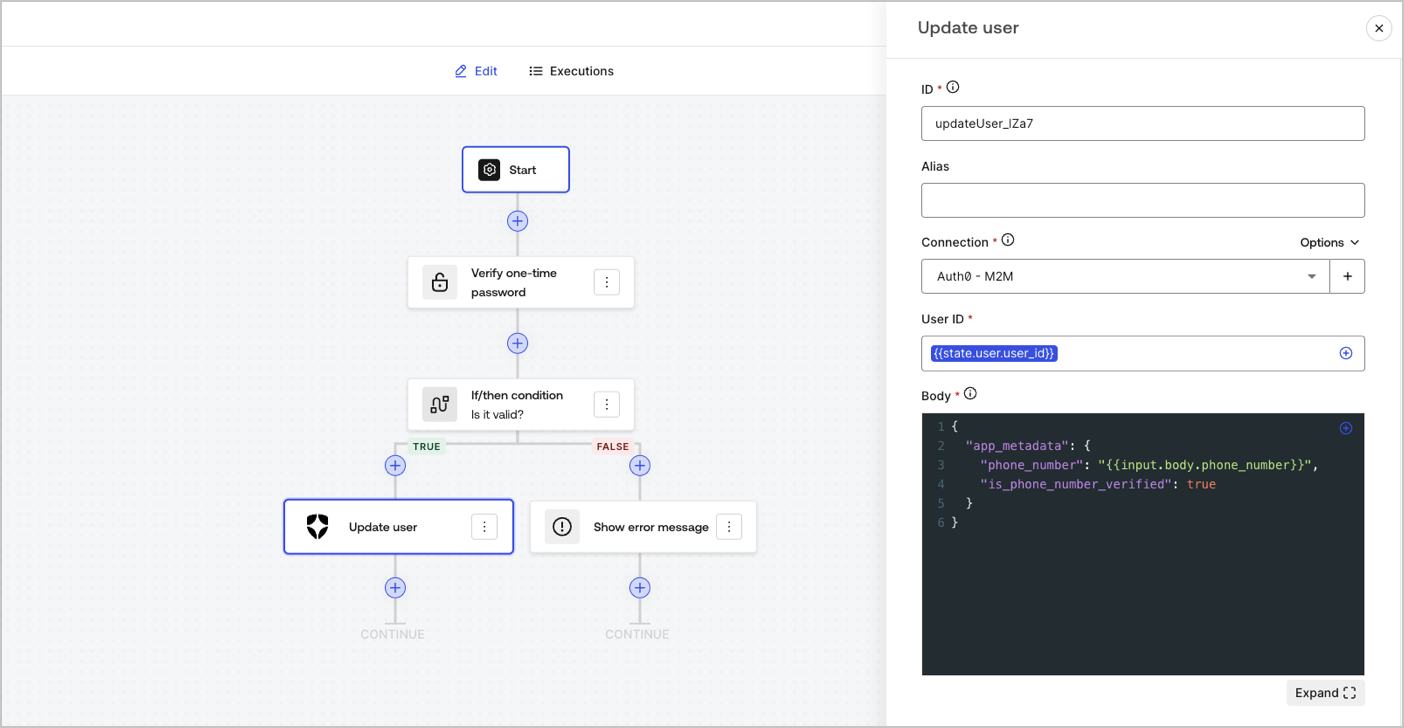
Flow nodes let you add and create custom logic and integration flows to your forms. To learn more, read [Flows.](/docs/customize/forms/flows)
<Frame>
  <img src="https://mintcdn.com/generaltranslationinc/gC1sp2cPcB7j7ynR/docs/images/cdy7uua7fh8z/4UGCrqzgyHTPryLoEuBwNt/e4a67be08a33b565ece89973028fa6ac/forms-flow-node.png?fit=max&auto=format&n=gC1sp2cPcB7j7ynR&q=85&s=628c40f0d4ecd395e32c8d4dbad7f193" alt="Dashboard > Forms > Flow" data-og-width="1226" width="1226" data-og-height="504" height="504" data-path="docs/images/cdy7uua7fh8z/4UGCrqzgyHTPryLoEuBwNt/e4a67be08a33b565ece89973028fa6ac/forms-flow-node.png" data-optimize="true" data-opv="3" srcset="https://mintcdn.com/generaltranslationinc/gC1sp2cPcB7j7ynR/docs/images/cdy7uua7fh8z/4UGCrqzgyHTPryLoEuBwNt/e4a67be08a33b565ece89973028fa6ac/forms-flow-node.png?w=280&fit=max&auto=format&n=gC1sp2cPcB7j7ynR&q=85&s=19254c934a514a8b87bb843ce8e19a9a 280w, https://mintcdn.com/generaltranslationinc/gC1sp2cPcB7j7ynR/docs/images/cdy7uua7fh8z/4UGCrqzgyHTPryLoEuBwNt/e4a67be08a33b565ece89973028fa6ac/forms-flow-node.png?w=560&fit=max&auto=format&n=gC1sp2cPcB7j7ynR&q=85&s=c21da4087339e03f2eff7e30f0f047ba 560w, https://mintcdn.com/generaltranslationinc/gC1sp2cPcB7j7ynR/docs/images/cdy7uua7fh8z/4UGCrqzgyHTPryLoEuBwNt/e4a67be08a33b565ece89973028fa6ac/forms-flow-node.png?w=840&fit=max&auto=format&n=gC1sp2cPcB7j7ynR&q=85&s=17f6fd836ae4d2c136f347d23ebe265c 840w, https://mintcdn.com/generaltranslationinc/gC1sp2cPcB7j7ynR/docs/images/cdy7uua7fh8z/4UGCrqzgyHTPryLoEuBwNt/e4a67be08a33b565ece89973028fa6ac/forms-flow-node.png?w=1100&fit=max&auto=format&n=gC1sp2cPcB7j7ynR&q=85&s=346294b4c942a1b895f23640442cced0 1100w, https://mintcdn.com/generaltranslationinc/gC1sp2cPcB7j7ynR/docs/images/cdy7uua7fh8z/4UGCrqzgyHTPryLoEuBwNt/e4a67be08a33b565ece89973028fa6ac/forms-flow-node.png?w=1650&fit=max&auto=format&n=gC1sp2cPcB7j7ynR&q=85&s=33fdbeaef81e15114a1c1b0e9f22995d 1650w, https://mintcdn.com/generaltranslationinc/gC1sp2cPcB7j7ynR/docs/images/cdy7uua7fh8z/4UGCrqzgyHTPryLoEuBwNt/e4a67be08a33b565ece89973028fa6ac/forms-flow-node.png?w=2500&fit=max&auto=format&n=gC1sp2cPcB7j7ynR&q=85&s=7ae3038b419e86a10166bd7adb59f091 2500w" />
</Frame>

<Frame>
  <img src="https://mintcdn.com/generaltranslationinc/gC1sp2cPcB7j7ynR/docs/images/cdy7uua7fh8z/4L1ixTcIVCmslts6M4wn7u/dc07046cfd41494f40285de5c102ff52/flow-editor-example.png?fit=max&auto=format&n=gC1sp2cPcB7j7ynR&q=85&s=0e545ec9cfc869b6c4bc738320aa551e" alt="Dashboard > Forms > Flow > Editor" data-og-width="1404" width="1404" data-og-height="728" height="728" data-path="docs/images/cdy7uua7fh8z/4L1ixTcIVCmslts6M4wn7u/dc07046cfd41494f40285de5c102ff52/flow-editor-example.png" data-optimize="true" data-opv="3" srcset="https://mintcdn.com/generaltranslationinc/gC1sp2cPcB7j7ynR/docs/images/cdy7uua7fh8z/4L1ixTcIVCmslts6M4wn7u/dc07046cfd41494f40285de5c102ff52/flow-editor-example.png?w=280&fit=max&auto=format&n=gC1sp2cPcB7j7ynR&q=85&s=2f45a68b2c3dd89d50f9f44e2a37e9de 280w, https://mintcdn.com/generaltranslationinc/gC1sp2cPcB7j7ynR/docs/images/cdy7uua7fh8z/4L1ixTcIVCmslts6M4wn7u/dc07046cfd41494f40285de5c102ff52/flow-editor-example.png?w=560&fit=max&auto=format&n=gC1sp2cPcB7j7ynR&q=85&s=48d306e2a5cb9e7c9073426feb7656ea 560w, https://mintcdn.com/generaltranslationinc/gC1sp2cPcB7j7ynR/docs/images/cdy7uua7fh8z/4L1ixTcIVCmslts6M4wn7u/dc07046cfd41494f40285de5c102ff52/flow-editor-example.png?w=840&fit=max&auto=format&n=gC1sp2cPcB7j7ynR&q=85&s=cdb3c90356516deba8653770bc4868c6 840w, https://mintcdn.com/generaltranslationinc/gC1sp2cPcB7j7ynR/docs/images/cdy7uua7fh8z/4L1ixTcIVCmslts6M4wn7u/dc07046cfd41494f40285de5c102ff52/flow-editor-example.png?w=1100&fit=max&auto=format&n=gC1sp2cPcB7j7ynR&q=85&s=849c401f874fb7f5cf3c9235f2a68ab5 1100w, https://mintcdn.com/generaltranslationinc/gC1sp2cPcB7j7ynR/docs/images/cdy7uua7fh8z/4L1ixTcIVCmslts6M4wn7u/dc07046cfd41494f40285de5c102ff52/flow-editor-example.png?w=1650&fit=max&auto=format&n=gC1sp2cPcB7j7ynR&q=85&s=03d2c8062158fe704fab7b82dcebfcbc 1650w, https://mintcdn.com/generaltranslationinc/gC1sp2cPcB7j7ynR/docs/images/cdy7uua7fh8z/4L1ixTcIVCmslts6M4wn7u/dc07046cfd41494f40285de5c102ff52/flow-editor-example.png?w=2500&fit=max&auto=format&n=gC1sp2cPcB7j7ynR&q=85&s=28d3f38b332438514d875112d94795a1 2500w" />
</Frame>

## Start node

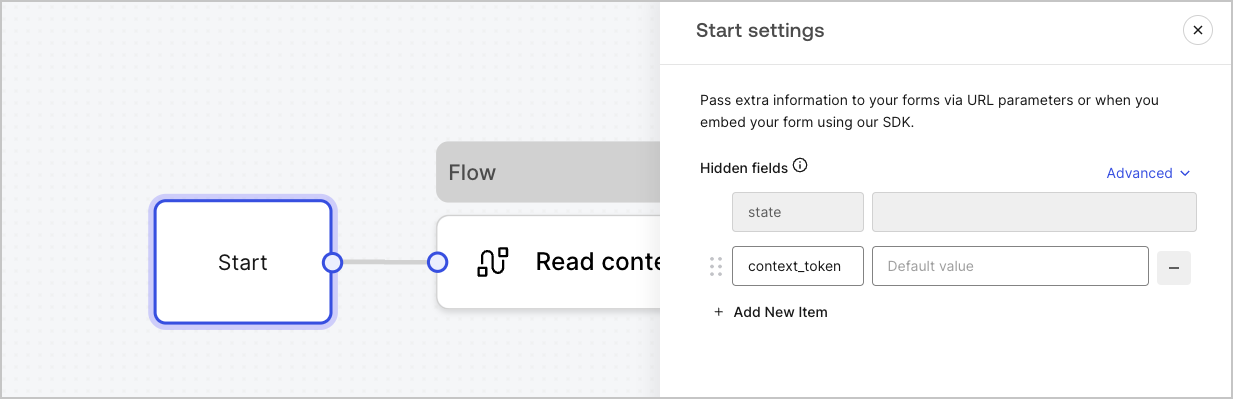
Start nodes are not visible to the user. It is where you can configure hidden field variables, such as user attributes when [rendering a form with an Action.](/docs/customize/forms/render)
<Frame>
  <img src="https://mintcdn.com/generaltranslationinc/bJAwjuRiJwaYWdNy/docs/images/cdy7uua7fh8z/2GqFDPep4akUxucmMJyb5/2b50f07f50ee29501341dc54f686de07/form-start-node.png?fit=max&auto=format&n=bJAwjuRiJwaYWdNy&q=85&s=5c775c5e924c511b4290c6f5c76e2341" alt="Dashboard > Forms > Start node" data-og-width="1233" width="1233" data-og-height="399" height="399" data-path="docs/images/cdy7uua7fh8z/2GqFDPep4akUxucmMJyb5/2b50f07f50ee29501341dc54f686de07/form-start-node.png" data-optimize="true" data-opv="3" srcset="https://mintcdn.com/generaltranslationinc/bJAwjuRiJwaYWdNy/docs/images/cdy7uua7fh8z/2GqFDPep4akUxucmMJyb5/2b50f07f50ee29501341dc54f686de07/form-start-node.png?w=280&fit=max&auto=format&n=bJAwjuRiJwaYWdNy&q=85&s=7a1d34f3beedd06279b4dfa5c1284368 280w, https://mintcdn.com/generaltranslationinc/bJAwjuRiJwaYWdNy/docs/images/cdy7uua7fh8z/2GqFDPep4akUxucmMJyb5/2b50f07f50ee29501341dc54f686de07/form-start-node.png?w=560&fit=max&auto=format&n=bJAwjuRiJwaYWdNy&q=85&s=6b39beca7d64a52e9234bd74ccc8fe38 560w, https://mintcdn.com/generaltranslationinc/bJAwjuRiJwaYWdNy/docs/images/cdy7uua7fh8z/2GqFDPep4akUxucmMJyb5/2b50f07f50ee29501341dc54f686de07/form-start-node.png?w=840&fit=max&auto=format&n=bJAwjuRiJwaYWdNy&q=85&s=f0c2f3be32035000e49702eff3b57175 840w, https://mintcdn.com/generaltranslationinc/bJAwjuRiJwaYWdNy/docs/images/cdy7uua7fh8z/2GqFDPep4akUxucmMJyb5/2b50f07f50ee29501341dc54f686de07/form-start-node.png?w=1100&fit=max&auto=format&n=bJAwjuRiJwaYWdNy&q=85&s=91580fec837200a09ade8040f03f9fcc 1100w, https://mintcdn.com/generaltranslationinc/bJAwjuRiJwaYWdNy/docs/images/cdy7uua7fh8z/2GqFDPep4akUxucmMJyb5/2b50f07f50ee29501341dc54f686de07/form-start-node.png?w=1650&fit=max&auto=format&n=bJAwjuRiJwaYWdNy&q=85&s=f2dafdd8f5180361802752d5f038cc73 1650w, https://mintcdn.com/generaltranslationinc/bJAwjuRiJwaYWdNy/docs/images/cdy7uua7fh8z/2GqFDPep4akUxucmMJyb5/2b50f07f50ee29501341dc54f686de07/form-start-node.png?w=2500&fit=max&auto=format&n=bJAwjuRiJwaYWdNy&q=85&s=74b5150d9b85382eef1e1a72ad678e10 2500w" />
</Frame>

## Ending screen node

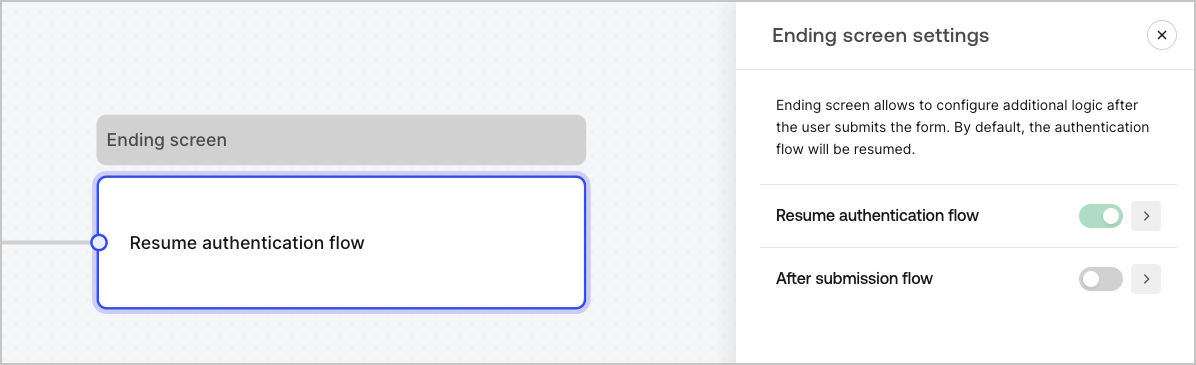
Every form has an Ending screen node. By default this node resumes the authentication flow and this is where you can configure an After submission flow.
<Frame>
  <img src="https://mintcdn.com/generaltranslationinc/US4r8ss18ta5OCdS/docs/images/cdy7uua7fh8z/0icbjPpDKsnmtInimJ548/ead65b5e89de57a3079127324acd314d/ending-screen-node.png?fit=max&auto=format&n=US4r8ss18ta5OCdS&q=85&s=a7fda32c4e2e5741474d10076ac0ebfc" alt="Dashboard > Forms > Ending screen node" data-og-width="1196" width="1196" data-og-height="365" height="365" data-path="docs/images/cdy7uua7fh8z/0icbjPpDKsnmtInimJ548/ead65b5e89de57a3079127324acd314d/ending-screen-node.png" data-optimize="true" data-opv="3" srcset="https://mintcdn.com/generaltranslationinc/US4r8ss18ta5OCdS/docs/images/cdy7uua7fh8z/0icbjPpDKsnmtInimJ548/ead65b5e89de57a3079127324acd314d/ending-screen-node.png?w=280&fit=max&auto=format&n=US4r8ss18ta5OCdS&q=85&s=4ba5e10f87f201859cd1e07585763baf 280w, https://mintcdn.com/generaltranslationinc/US4r8ss18ta5OCdS/docs/images/cdy7uua7fh8z/0icbjPpDKsnmtInimJ548/ead65b5e89de57a3079127324acd314d/ending-screen-node.png?w=560&fit=max&auto=format&n=US4r8ss18ta5OCdS&q=85&s=94185d9b4c83077bddc17de29cfd1d77 560w, https://mintcdn.com/generaltranslationinc/US4r8ss18ta5OCdS/docs/images/cdy7uua7fh8z/0icbjPpDKsnmtInimJ548/ead65b5e89de57a3079127324acd314d/ending-screen-node.png?w=840&fit=max&auto=format&n=US4r8ss18ta5OCdS&q=85&s=8d803a826b95f7060998be4d7191ec2f 840w, https://mintcdn.com/generaltranslationinc/US4r8ss18ta5OCdS/docs/images/cdy7uua7fh8z/0icbjPpDKsnmtInimJ548/ead65b5e89de57a3079127324acd314d/ending-screen-node.png?w=1100&fit=max&auto=format&n=US4r8ss18ta5OCdS&q=85&s=345466596520c985774e1185ece1077a 1100w, https://mintcdn.com/generaltranslationinc/US4r8ss18ta5OCdS/docs/images/cdy7uua7fh8z/0icbjPpDKsnmtInimJ548/ead65b5e89de57a3079127324acd314d/ending-screen-node.png?w=1650&fit=max&auto=format&n=US4r8ss18ta5OCdS&q=85&s=536e7d9257dbc4e94896a447aae37b52 1650w, https://mintcdn.com/generaltranslationinc/US4r8ss18ta5OCdS/docs/images/cdy7uua7fh8z/0icbjPpDKsnmtInimJ548/ead65b5e89de57a3079127324acd314d/ending-screen-node.png?w=2500&fit=max&auto=format&n=US4r8ss18ta5OCdS&q=85&s=1d8605d43228c82f58081c15780a29cb 2500w" />
</Frame>